Setting up a portfolio folder in OneDrive is an easy process. First you'll create the folder, then add your files to the folder, then share the folder with the portfolio evaluating body's membership.
Set up a portfolio folder
First, log into your Detroit Mercy Office 365 account by going to http://portal.office.com and navigate to OneDrive. Now you'll need to add a folder. Click NEW at the top of the screen, then select FOLDER.
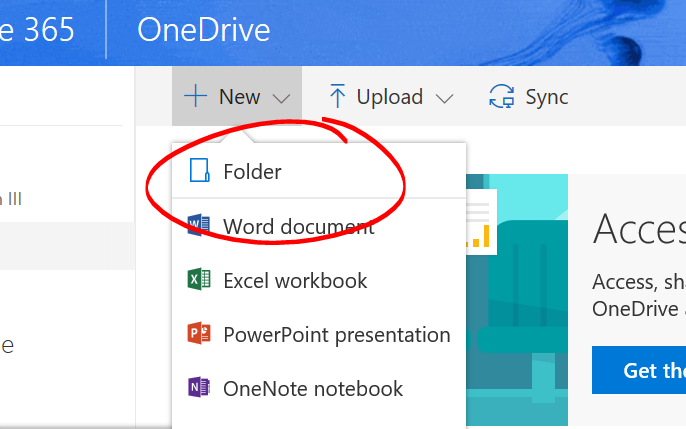
Name your folder appropriately, then click CREATE.
Add files to your folder
Select files appropriate to the criteria required for your portfolio. Rename the files as necessary to help the portfolio evaluating body determine which files are associated with which criterion.
When you're ready to add files to your portfolio folder, access your OneDrive, then open the portfolio folder by clicking on the folder name.

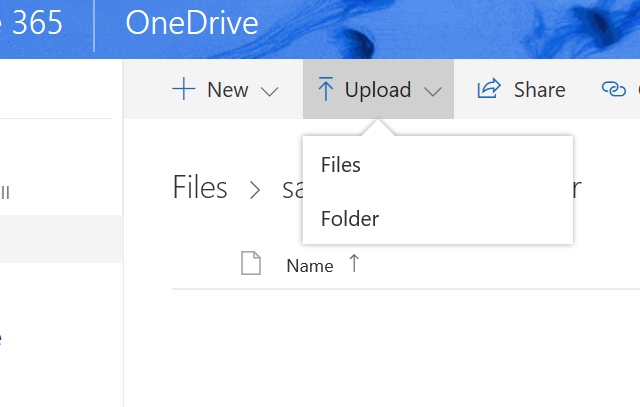
Now you can add files to the folder either by selecting items on your computer and dragging them over the open OneDrive folder in your browser, or by clicking UPLOAD, then choosing FILES or FOLDER.
![]()
Setting up a portfolio folder in OneDrive is an easy process. First you'll create the folder, then add your files to the folder, then share the folder with the portfolio evaluating body's membership.
Set up a portfolio folder
First, log into your Detroit Mercy Office 365 account by going to http://portal.office.com and navigate to OneDrive. Now you'll need to add a folder. Click NEW at the top of the screen, then select FOLDER.
Name your folder appropriately, then click CREATE.
Add files to your folder
Select files appropriate to the criteria required for your portfolio. Rename the files as necessary to help the portfolio evaluating body determine which files are associated with which criterion.
When you're ready to add files to your portfolio folder, access your OneDrive, then open the portfolio folder by clicking on the folder name.
Now you can add files to the folder either by selecting items on your computer and dragging them over the open OneDrive folder in your browser, or by clicking UPLOAD, then choosing FILES or FOLDER.
Share your folder
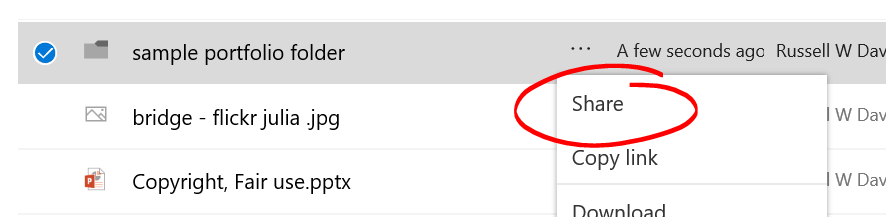
When you're ready to share your folder, log into your OneDrive account, click the ellipsis button to the right of the folder name, and choose SHARE.
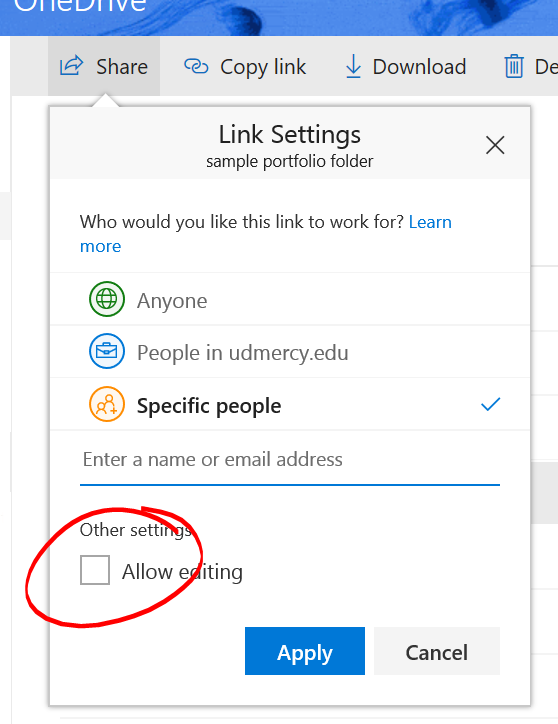
By default, when you enable sharing, anyone with a link to the folder can view and edit the folder's contents.
To prevent people who can access your folder from editing its contents, uncheck the "Allow editing" box.
If your portfolio requires open access, or if you are comfortable with anyone who has a link to the folder being able to access its contents, click OUTLOOK button. This will open the link to your folder in an Outlook email window. Enter the email addresses of the profile evaluation board's members, any appropriate subject, any additional message content, and send your email.
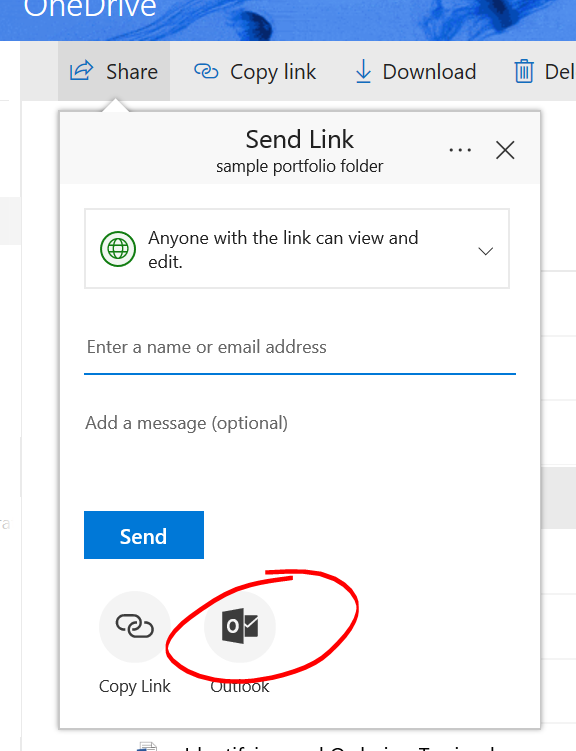
If you'd like to limit access to the folder to invited accounts only, click where it says "Anyone with the link can view and edit" ...
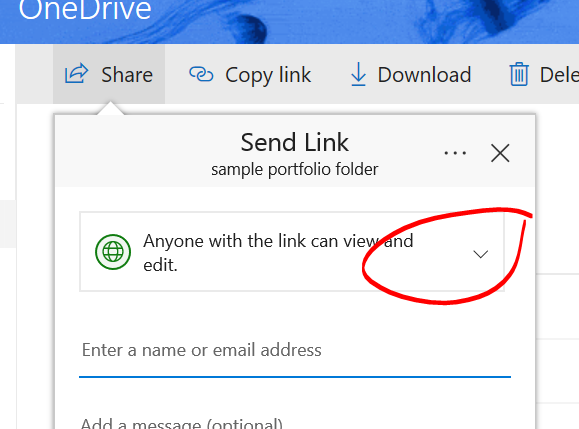
... and choose "Specific People".
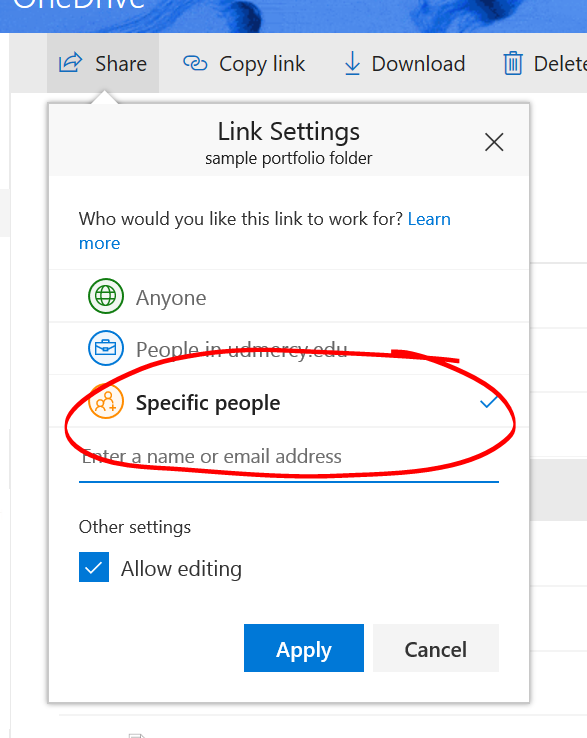
With this option selected, you will need to enter the names or email addresses of the members of the portfolio evaluating body on the appropriate line, and select their accounts from the drop-down list that appears as you type.
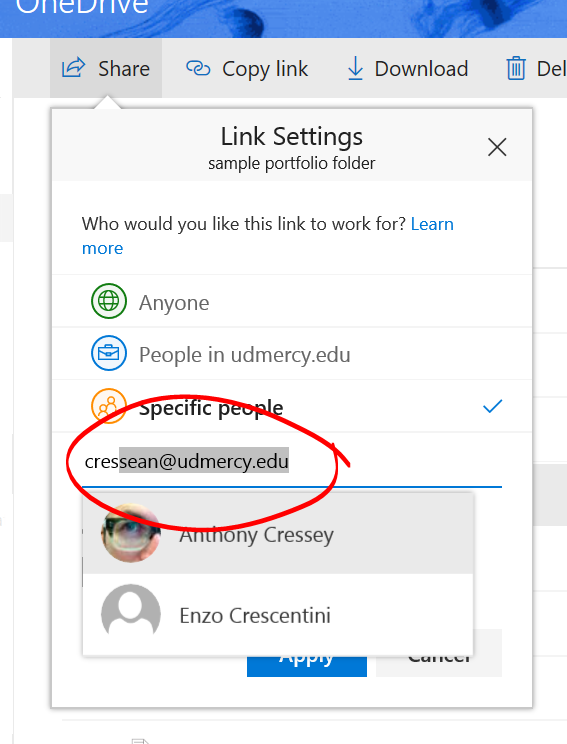
Click APPLY to add the account to the share list. Once all the accounts you wish to share with have been added, click the SEND button to send them all the link to your folder.